160 million users can't be wrong!
 You have successfully updated DAP
 Tips & Shortcuts:
Divide & Conquer - Pick quality mirror sites!
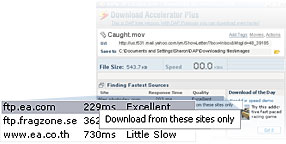
Before clicking "Start Download", right-click any of the mirror sites on the list and choose the "download from these sites only" to ensure DAP will work with good-connection sites. Note that you may CTRL+click several mirror sites (e.g. all those with "excellent" quality) and then right click one of them and choose "download from these sites only".
Before clicking "Start Download", right-click any of the mirror sites on the list and choose the "download from these sites only" to ensure DAP will work with good-connection sites. Note that you may CTRL+click several mirror sites (e.g. all those with "excellent" quality) and then right click one of them and choose "download from these sites only".
By holding the ALT key when clicking a download link, you can tell DAP to ignore the specified link (DAP download Window will not open and normal browser behavior will be retained). Similarly, by holding CTRL + ALT keys when clicking any link, will force DAP to try and download the specified link.
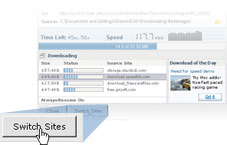
If it seems your download takes longer then it should, or if you see one of the "chunks" progress bar move too slowly, try clicking the "Switch Site" button in order to try a different site with a better connection.
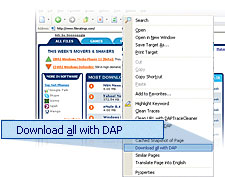
When in presence of a web page that holds several download links, simply right-click one of them and choose "Download all with DAP". A special Download windows opens up, where you can click the "Filter" button to choose specific extension links (e.g. "exe", "zip", "jpg", etc...) and choose whether to download all the files now, later on (queue) and choose a specific download folder (other than your default).
If you want to view both your current downloads and completed downloads on one big list, choose the "view completed items on main screen" option from the View menu.
Go to: View → View completed items on main screen
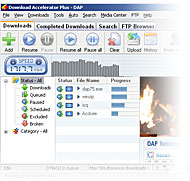
You can enable the Filters Pane by choosing "Filters Pane" form the View menu. This Pane appears on the left and allows ultra-fast filtering of your downloads by status (paused, queued, broken etc...) or by type (software, music, movie, etc...). Especially useful for heavy duty users.
Go to: View → Filters Pane

Custom Search
*Important Notice: The above information is provided for informational purposes only, and does not imply or intend to represent any relationship or affiliation between SpeedBit and any of the above-mentioned companies or other third parties.