DAP Toolbar
DAP 5.0 introduces an exciting new feature: DAP's Toolbar.
The Toolbar enables you to enjoy DAP's browser integration further
more - now you can use DAP from your browser, the following tutorial
will highlight the functionality of DAP's Toolbar.

Let s take a look at the new DAP Bar:
1. The first button ( the Home Icon ) is your direct link to SpeedBit's website - press it and it will take you to our Homepage, where you can get the latest updates of DAP.
2. Pressing that button will open DAP's main window
3. Pressing the option button will open DAP's option menu,
Here you can decide whether :
- DAP will detect any download as you click on the file URL.
- DAP will detect a download link as you copy it to the clipboard (CTRL-C).
- Enable your scheduler to start downloading at the predefined time.
- Start downloading immediately.
- Shut down your computer after downloads has ended.
- Open DAP's Options/Configurations screen.

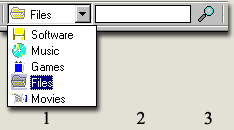
4. DAP's built in files search: Now, you can easily search for your preferred files to download, searching for files was never easier:
1. Choose the category of the file you are looking for (Software, Games,
etc...)
2. Type in the name of your requested file.
3. Click on the Magnifying Glass to start the search.
5. DAP's Download Target: when you encounter a file you wish to download you can download it easily with DAP , even if it's extension is not in DAP's extensions list. Simply Drag & Drop the file link onto the target and DAP will commence the download.
6. This number indicates how many simultaneous downloads are currently running.
7. Download Information : click on the arrow button to see all current downloads, stop them all, open each of the download screens or open DAP's main window.

8. One of DAP's toolbar hottest features : 'Links Highlight'.
No more searching for the right link to the files you want , when pressing
the 'Highlight' button, DAP will mark the links for you in your
preferred color. (See the pictures below)
To switch the marking color press on the arrow to the right of the 'Highlight'
button


DAP Announcment Panel:
DAP's Anouncment panel allows you to be informed by SpeedBit's new products and news.

