
300 million installations and counting...
DAP Help
Disable or Remove Add-ons
You can disable add-ons so that they no longer function, or you can completely remove add-ons from your computer.To disable or remove add-ons:
- Right-click the DAP 10 icon in the Windows system tray, and then click the Open DAP downloads manager option. The DAP main window appears.
- Click the Get Add-ons button in the toolbar at the top of the window. You can also click the Tools menu bar item, and then click the Manage Add-ons option.
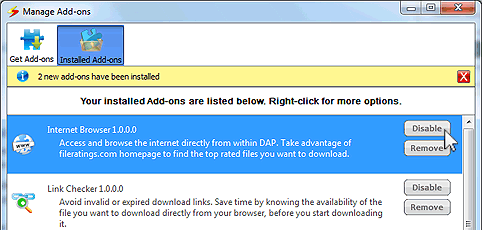
The Manage Add-ons dialog box appears - Click the Installed Add-ons button at the top of the dialog box.
- Click the Disable button next to the add-on you wish to turn off but leave installed on your computer. Click Remove to completely remove the add-on and all its files from your computer.
Products & Services

 Commercial Use Note | Copyright Infringement Notice | Speedbit Privacy Policy | Download Accelerator Plus (DAP) product License Agreement | Speedbit Distribution Agreement
Copyright © 1999-2022 Speedbit Ltd. All specifications are subject to change. All trademarks are the property of their respective owners.
Speedbit's product Download Accelerator Plus (DAP - free download manager) & services related thereto are covered by United States Patent Nos. 6,339,785, 6,377,974 and 6,606,646. Other patents pending.